
Handy Links
Layers
Probably the most important feature of a graphics editing program and essential for tagging is the ability to use layers. Layers allow objects to be placed, stacked vertically, allowing separate images or parts to be moved in isolation to other layers. All the software looked at in this site will include layers.
You can look at layers as transparent panels similar to the ones found on projectors in schools or businesses in the days before presentation software took over. No doubt they are still used in some cases.


Another way layers are essential is when creating a frame by frame animation. The image below represents the top layer, which you would see in PSP, when opening it. However, the images to the right show the layers as they appear in versions 9 and 2019 of Paint Shop Pro. When opened or imported into software that will produce animations, each layer will act as if a frame in a video.
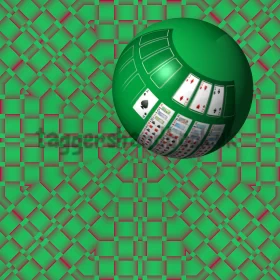

As you can see, layers will play an important role in creating tags, both static and animated. There are a few other layer types which we shall go over next.
Types of Layer
Most programs will either be Raster based or Vector Based. Raster based programs will be the sort that focus on photograph editing or painting. GIMP, Affinity Photo, Photoshop, Paint.net and Chasy's Draw are all Raster based as they are used more specifically to edit photographs. Paintshop Pro is quite unique in that it offers both Raster and Vector layers. This makes it very versatile. The Affinity range also takes a unique take on things. Whilst Designer is a vector based drawing program, and Photo is a raster based package, both have a persona that allows you to switch between raster and vector layers when both programs are installed.
If you want to learn how to draw or use a vector based program and not want to spend any cash, Inkscape is probably the prime Open Source vector drawing program out there, but there are others available. It is probably the most featured (and thus has a longer learning curve) but there are plenty of videos out there which will help you get started and I'll have more here as I get the time to add content.
As well as vector and raster layer, there are now adjustment layers available in many photo editing applications, though not all. GIMP does not have adjustment layers as yet. However, it's rare you will need them when tagging. Layers can also be grouped so they will moved together and offer a way to keep areas of the image together that may not need to be touched again. Since Version 9, PSP also gave us Art Media Layers. Art media layers are for using the art media tools to create either wet or dry artistic brush strokes using the oil brush, palette knife, chalk or other tools for this purpose. This will be looked at in more detail later.
Many programs now allow more than just a layer for working on. There can be Adjustment layers - mostly these will be used in photo editing and allow adjustments to me made to a layer which leaves the original in tact. This is called non destructive editing - Mask layers - which can be used very well in tagging, and is a great way to remove backgrounds to create tubes etc. PSP

Raster or Vector
Raster images are those of a photographic nature. The can contain more colours than a vector based image. Vector images are used more for graphic art and logs. They are mathematically created which means they can be scaled up and down without lost of quality. Whilst a raster image can be opened in many software titles, vector images are not always so easy to open requiring the software that created it to open and edit. The exception is the SVG format which can be opened in a web browser and by most, if not all, vector drawing programs.

Layer Palettes for different programs


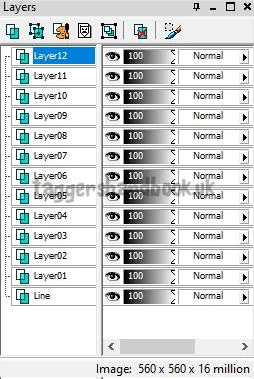
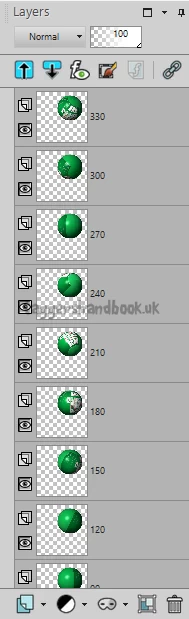
Note the increase is size to accommodate the thumb nail.